
This guide explains how to add IRIS to your mobile home screen so it can be used like an app on iPhone (iOS) and Android.
iPhone (iOS)
Requirements
iPhone with iOS 16.4 or later
Safari browser (required)
Steps
Open Safari on your iPhone.
Note: This does not work in Chrome or Edge.
Go to the IRIS website.
Tap the Share icon
(square with an arrow pointing up).
Scroll down and select Add to Home Screen.
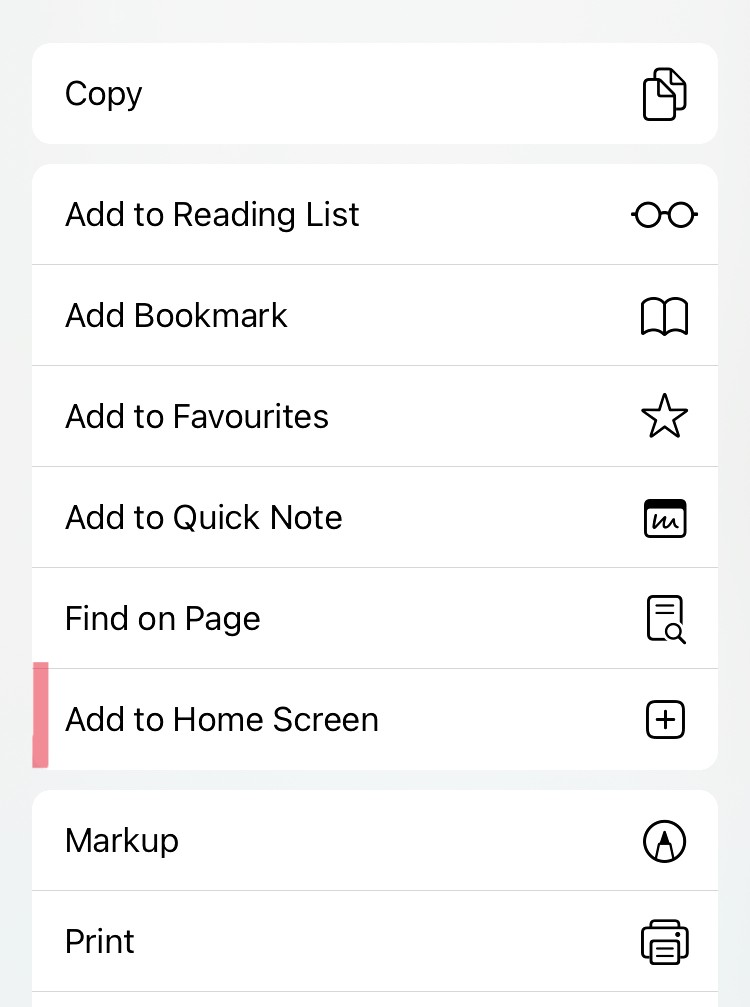
Edit the name if needed and tap Add.
The IRIS icon will now appear on your home screen.
Open IRIS from the home screen and log in.
Android
Requirements
Android phone
Chrome browser (recommended)
Steps
Open Chrome on your Android device.
Go to the IRIS website.
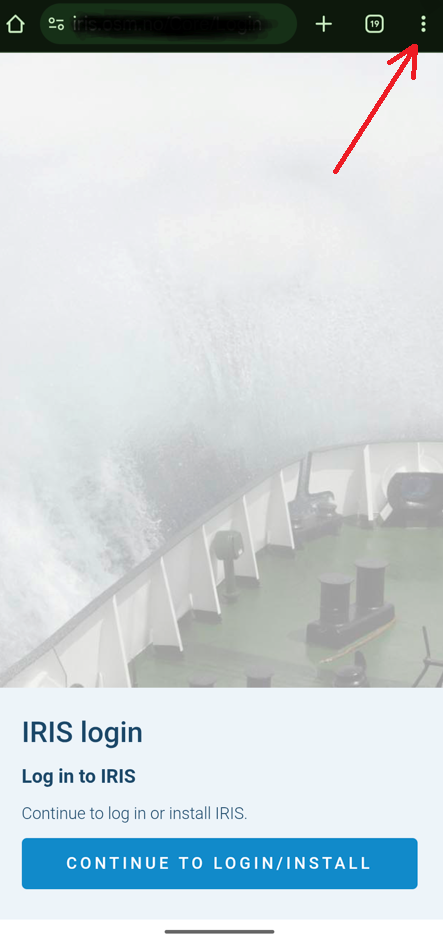
Tap the menu (three dots in the top-right corner).
Select Add to Home screen or Install app.
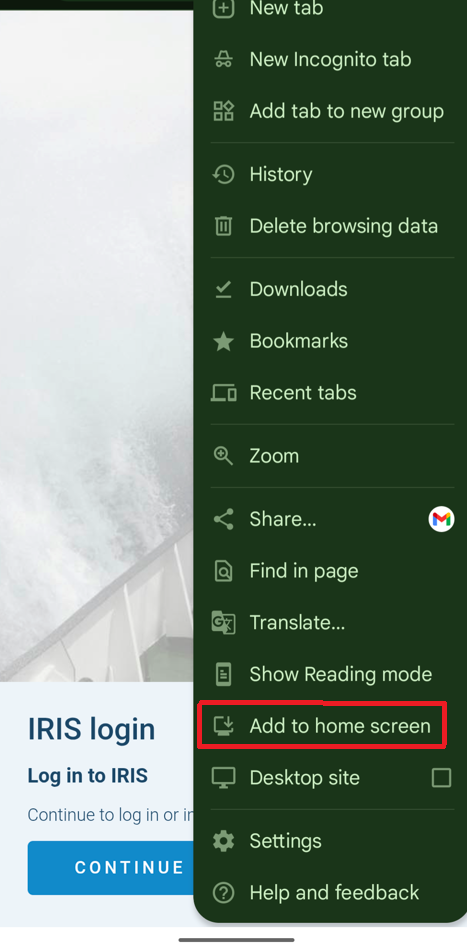
Confirm by tapping Add or Install.
The IRIS icon will appear on your home screen.
Open IRIS from the home screen and log in.